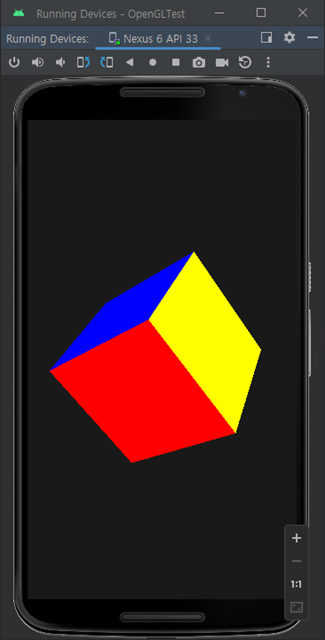
package com.example.opengltest;


import android.content.Context;

import android.opengl.GLSurfaceView;

import android.view.MotionEvent;


public class myGlSurfaceView extends GLSurfaceView {


    myRenderer myRender;


    public myGlSurfaceView(Context context) {

        super(context);


        // Create an OpenGL ES 3.0 context.

        setEGLContextClientVersion(3);


        super.setEGLConfigChooser(8, 8, 8, 8, 16, 0);


        // Set the Renderer for drawing on the GLSurfaceView

        myRender = new myRenderer(context);

        setRenderer(myRender);


        // Render the view only when there is a change in the drawing data

        setRenderMode(GLSurfaceView.RENDERMODE_CONTINUOUSLY);

    }


    //private final float TOUCH_SCALE_FACTOR = 180.0f / 320;

    private static final float TOUCH_SCALE_FACTOR = 0.0015f;

    private float mPreviousX;

    private float mPreviousY;


    @Override

    public boolean onTouchEvent(MotionEvent e) {

//        return super.onTouchEvent(event);


        float x = e.getX();

        float y = e.getY();


        switch (e.getAction()) {

            case MotionEvent.ACTION_MOVE:


                float dx = x - mPreviousX;

                //subtract, so the cube moves the same direction as your finger.

                //with plus it moves the opposite direction.

                myRender.setX(myRender.getX() - (dx * TOUCH_SCALE_FACTOR));


                float dy = y - mPreviousY;

                myRender.setY(myRender.getY() - (dy * TOUCH_SCALE_FACTOR));

        }


        mPreviousX = x;

        mPreviousY = y;

        return true;

    }

}
myRenderer.java
package com.example.opengltest;


import android.content.Context;

import android.opengl.GLES30;

import android.opengl.GLSurfaceView;

import android.opengl.Matrix;

import android.util.Log;


import javax.microedition.khronos.egl.EGLConfig;

import javax.microedition.khronos.opengles.GL10;


public class myRenderer implements GLSurfaceView.Renderer {


    private int mWidth;

    private int mHeight;

    private static String TAG = "myRenderer";

    public Cube mCube;

    private float mAngle =0;

    private float mTransY=0;

    private float mTransX=0;

    private static final float Z_NEAR = 1f;

    private static final float Z_FAR = 40f;


    // mMVPMatrix is an abbreviation for "Model View Projection Matrix"

    private final float[] mMVPMatrix = new float[16];

    private final float[] mProjectionMatrix = new float[16];

    private final float[] mViewMatrix = new float[16];

    private final float[] mRotationMatrix = new float[16];


    public myRenderer(Context context) {

        //cube can not be instianated here, because of "no egl context"  no clue.

        //do it in onSurfaceCreate and it is fine.  odd, but workable solution.

    }

    public static int LoadShader(int type, String shaderSrc) {

        int shader;

        int[] compiled = new int[1];


        // Create the shader object

        shader = GLES30.glCreateShader(type);


        if (shader == 0) {

            return 0;

        }


        // Load the shader source

        GLES30.glShaderSource(shader, shaderSrc);


        // Compile the shader

        GLES30.glCompileShader(shader);


        // Check the compile status

        GLES30.glGetShaderiv(shader, GLES30.GL_COMPILE_STATUS, compiled, 0);


        if (compiled[0] == 0) {

            Log.e(TAG, "Erorr!!!!");

            Log.e(TAG, GLES30.glGetShaderInfoLog(shader));

            GLES30.glDeleteShader(shader);

            return 0;

        }


        return shader;

    }


    public static void checkGlError(String glOperation) {

        int error;

        while ((error = GLES30.glGetError()) != GLES30.GL_NO_ERROR) {

            Log.e(TAG, glOperation + ": glError " + error);

            throw new RuntimeException(glOperation + ": glError " + error);

        }

    }


    @Override

    public void onSurfaceCreated(GL10 gl, EGLConfig config) {


        //set the clear buffer color to light gray.

        //GLES30.glClearColor(0.9f, .9f, 0.9f, 0.9f);

        //set the clear buffer color to a dark grey.

        GLES30.glClearColor(0.1f, .1f, 0.1f, 0.9f);

        //initialize the cube code for drawing.

        mCube = new Cube();

        //if we had other objects setup them up here as well.

    }


    @Override

    public void onSurfaceChanged(GL10 gl, int width, int height) {


        mWidth = width;

        mHeight = height;

        // Set the viewport

        GLES30.glViewport(0, 0, mWidth, mHeight);

        float aspect = (float) width / height;


        // this projection matrix is applied to object coordinates

        //no idea why 53.13f, it was used in another example and it worked.

        Matrix.perspectiveM(mProjectionMatrix, 0, 53.13f, aspect, Z_NEAR, Z_FAR);

    }


    @Override

    public void onDrawFrame(GL10 gl) {


        // Clear the color buffer  set above by glClearColor.

        GLES30.glClear(GLES30.GL_COLOR_BUFFER_BIT | GLES30.GL_DEPTH_BUFFER_BIT);


        //need this otherwise, it will over right stuff and the cube will look wrong!

        GLES30.glEnable(GLES30.GL_DEPTH_TEST);


        // Set the camera position (View matrix)  note Matrix is an include, not a declared method.

        Matrix.setLookAtM(mViewMatrix, 0, 0, 0, -3, 0f, 0f, 0f, 0f, 1.0f, 0.0f);


        // Create a rotation and translation for the cube

        Matrix.setIdentityM(mRotationMatrix, 0);


        //move the cube up/down and left/right

        Matrix.translateM(mRotationMatrix, 0, mTransX, mTransY, 0);


        //mangle is how fast, x,y,z which directions it rotates.

        Matrix.rotateM(mRotationMatrix, 0, mAngle, 1.0f, 1.0f, 1.0f);


        // combine the model with the view matrix

        Matrix.multiplyMM(mMVPMatrix, 0, mViewMatrix, 0, mRotationMatrix, 0);


        // combine the model-view with the projection matrix

        Matrix.multiplyMM(mMVPMatrix, 0, mProjectionMatrix, 0, mMVPMatrix, 0);


        mCube.draw(mMVPMatrix);


        //change the angle, so the cube will spin.

        mAngle+=4;

    }


    //used the touch listener to move the cube up/down (y) and left/right (x)

    public float getY() {

        return mTransY;

    }


    public void setY(float mY) {

        mTransY = mY;

    }


    public float getX() {

        return mTransX;

    }


    public void setX(float mX) {

        mTransX = mX;

    }

}
Cube.java
package com.example.opengltest;


import android.opengl.GLES30;

import android.util.Log;


import java.nio.ByteBuffer;

import java.nio.ByteOrder;

import java.nio.FloatBuffer;


public class Cube {


    private int mProgramObject;

    private int mMVPMatrixHandle;

    private int mColorHandle;

    private FloatBuffer mVertices;


    //initial size of the cube.  set here, so it is easier to change later.

    float size = 0.4f;


    //this is the initial data, which will need to translated into the mVertices variable in the consturctor.

    float[] mVerticesData = new float[]{

            ////////////////////////////////////////////////////////////////////

            // FRONT

            ////////////////////////////////////////////////////////////////////

            // Triangle 1

            -size, size, size, // top-left

            -size, -size, size, // bottom-left

            size, -size, size, // bottom-right

            // Triangle 2

            size, -size, size, // bottom-right

            size, size, size, // top-right

            -size, size, size, // top-left

            ////////////////////////////////////////////////////////////////////

            // BACK

            ////////////////////////////////////////////////////////////////////

            // Triangle 1

            -size, size, -size, // top-left

            -size, -size, -size, // bottom-left

            size, -size, -size, // bottom-right

            // Triangle 2

            size, -size, -size, // bottom-right

            size, size, -size, // top-right

            -size, size, -size, // top-left


            ////////////////////////////////////////////////////////////////////

            // LEFT

            ////////////////////////////////////////////////////////////////////

            // Triangle 1

            -size, size, -size, // top-left

            -size, -size, -size, // bottom-left

            -size, -size, size, // bottom-right

            // Triangle 2

            -size, -size, size, // bottom-right

            -size, size, size, // top-right

            -size, size, -size, // top-left

            ////////////////////////////////////////////////////////////////////

            // RIGHT

            ////////////////////////////////////////////////////////////////////

            // Triangle 1

            size, size, -size, // top-left

            size, -size, -size, // bottom-left

            size, -size, size, // bottom-right

            // Triangle 2

            size, -size, size, // bottom-right

            size, size, size, // top-right

            size, size, -size, // top-left


            ////////////////////////////////////////////////////////////////////

            // TOP

            ////////////////////////////////////////////////////////////////////

            // Triangle 1

            -size, size, -size, // top-left

            -size, size, size, // bottom-left

            size, size, size, // bottom-right

            // Triangle 2

            size, size, size, // bottom-right

            size, size, -size, // top-right

            -size, size, -size, // top-left

            ////////////////////////////////////////////////////////////////////

            // BOTTOM

            ////////////////////////////////////////////////////////////////////

            // Triangle 1

            -size, -size, -size, // top-left

            -size, -size, size, // bottom-left

            size, -size, size, // bottom-right

            // Triangle 2

            size, -size, size, // bottom-right

            size, -size, -size, // top-right

            -size, -size, -size // top-left

    };


    float colorcyan[] = myColor.cyan();

    float colorblue[] = myColor.blue();

    float colorred[] = myColor.red();

    float colorgray[] = myColor.gray();

    float colorgreen[] = myColor.green();

    float coloryellow[] = myColor.yellow();


    //vertex shader code

    String vShaderStr =

            "#version 300 es           \n"

                    + "uniform mat4 uMVPMatrix;     \n"

                    + "in vec4 vPosition;           \n"

                    + "void main()                  \n"

                    + "{                            \n"

                    + "   gl_Position = uMVPMatrix * vPosition;  \n"

                    + "}                            \n";

    //fragment shader code.

    String fShaderStr =

            "#version 300 es                          \n"

                    + "precision mediump float;                   \n"

                    + "uniform vec4 vColor;                      \n"

                    + "out vec4 fragColor;                   \n"

                    + "void main()                                  \n"

                    + "{                                            \n"

                    + "  fragColor = vColor;                       \n"

                    + "}                                            \n";


    String TAG = "Cube";


    //finally some methods

    //constructor

    public Cube() {

        //first setup the mVertices correctly.

        mVertices = ByteBuffer

                .allocateDirect(mVerticesData.length * 4)

                .order(ByteOrder.nativeOrder())

                .asFloatBuffer()

                .put(mVerticesData);

        mVertices.position(0);


        //setup the shaders

        int vertexShader;

        int fragmentShader;

        int programObject;

        int[] linked = new int[1];


        // Load the vertex/fragment shaders

        vertexShader = myRenderer.LoadShader(GLES30.GL_VERTEX_SHADER, vShaderStr);

        fragmentShader = myRenderer.LoadShader(GLES30.GL_FRAGMENT_SHADER, fShaderStr);


        // Create the program object

        programObject = GLES30.glCreateProgram();


        if (programObject == 0) {

            Log.e(TAG, "So some kind of error, but what?");

            return;

        }


        GLES30.glAttachShader(programObject, vertexShader);

        GLES30.glAttachShader(programObject, fragmentShader);


        // Bind vPosition to attribute 0

        GLES30.glBindAttribLocation(programObject, 0, "vPosition");


        // Link the program

        GLES30.glLinkProgram(programObject);


        // Check the link status

        GLES30.glGetProgramiv(programObject, GLES30.GL_LINK_STATUS, linked, 0);


        if (linked[0] == 0) {

            Log.e(TAG, "Error linking program:");

            Log.e(TAG, GLES30.glGetProgramInfoLog(programObject));

            GLES30.glDeleteProgram(programObject);

            return;

        }


        // Store the program object

        mProgramObject = programObject;


        //now everything is setup and ready to draw.

    }


    public void draw(float[] mvpMatrix) {


        // Use the program object

        GLES30.glUseProgram(mProgramObject);


        // get handle to shape's transformation matrix

        mMVPMatrixHandle = GLES30.glGetUniformLocation(mProgramObject, "uMVPMatrix");

        myRenderer.checkGlError("glGetUniformLocation");


        // get handle to fragment shader's vColor member

        mColorHandle = GLES30.glGetUniformLocation(mProgramObject, "vColor");


        // Apply the projection and view transformation

        GLES30.glUniformMatrix4fv(mMVPMatrixHandle, 1, false, mvpMatrix, 0);

        myRenderer.checkGlError("glUniformMatrix4fv");


        int VERTEX_POS_INDX = 0;

        mVertices.position(VERTEX_POS_INDX);  //just in case.  We did it already though.


        //add all the points to the space, so they can be correct by the transformations.

        //would need to do this even if there were no transformations actually.

        GLES30.glVertexAttribPointer(VERTEX_POS_INDX, 3, GLES30.GL_FLOAT,

                false, 0, mVertices);

        GLES30.glEnableVertexAttribArray(VERTEX_POS_INDX);


        //Now we are ready to draw the cube finally.

        int startPos =0;

        int verticesPerface = 6;


        //draw front face

        GLES30.glUniform4fv(mColorHandle, 1, colorblue, 0);

        GLES30.glDrawArrays(GLES30.GL_TRIANGLES,startPos,verticesPerface);

        startPos += verticesPerface;


        //draw back face

        GLES30.glUniform4fv(mColorHandle, 1, colorcyan, 0);

        GLES30.glDrawArrays(GLES30.GL_TRIANGLES, startPos, verticesPerface);

        startPos += verticesPerface;


        //draw left face

        GLES30.glUniform4fv(mColorHandle, 1, colorred, 0);

        GLES30.glDrawArrays(GLES30.GL_TRIANGLES,startPos,verticesPerface);

        startPos += verticesPerface;


        //draw right face

        GLES30.glUniform4fv(mColorHandle, 1, colorgray, 0);

        GLES30.glDrawArrays(GLES30.GL_TRIANGLES,startPos,verticesPerface);

        startPos += verticesPerface;


        //draw top face

        GLES30.glUniform4fv(mColorHandle, 1, colorgreen, 0);

        GLES30.glDrawArrays(GLES30.GL_TRIANGLES,startPos,verticesPerface);

        startPos += verticesPerface;


        //draw bottom face

        GLES30.glUniform4fv(mColorHandle, 1, coloryellow, 0);

        GLES30.glDrawArrays(GLES30.GL_TRIANGLES,startPos,verticesPerface);

        //last face, so no need to increment.


    }

}
package com.example.opengltest;


import androidx.appcompat.app.AppCompatActivity;


import android.app.ActivityManager;

import android.content.Context;

import android.content.pm.ConfigurationInfo;

import android.os.Bundle;

import android.util.Log;

import android.view.View;


public class MainActivity extends AppCompatActivity {


    @Override

    protected void onCreate(Bundle savedInstanceState) {

        super.onCreate(savedInstanceState);

//        setContentView(R.layout.activity_main);


        if (detectOpenGLES30()) {

            //so we know it a opengl 3.0 and use our extended GLsurfaceview.

            setContentView(new myGlSurfaceView(this));

        } else {

            // This is where you could create an OpenGL ES 2.0 and/or 1.x compatible

            // renderer if you wanted to support both ES 1 and ES 2.

            Log.e("openglcube", "OpenGL ES 3.0 not supported on device.  Exiting...");

            finish();


        }

    }


    private boolean detectOpenGLES30() {

        ActivityManager am =

                (ActivityManager) getSystemService(Context.ACTIVITY_SERVICE);

        ConfigurationInfo info = am.getDeviceConfigurationInfo();

        return (info.reqGlEsVersion >= 0x30000);

    }


    @Override

    public void onWindowFocusChanged(boolean hasFocus) {

        super.onWindowFocusChanged(hasFocus);


        if (hasFocus) {

            getWindow().getDecorView().setSystemUiVisibility(

                    View.SYSTEM_UI_FLAG_LAYOUT_STABLE

                            | View.SYSTEM_UI_FLAG_LAYOUT_HIDE_NAVIGATION

                            | View.SYSTEM_UI_FLAG_LAYOUT_FULLSCREEN

                            | View.SYSTEM_UI_FLAG_HIDE_NAVIGATION

                            | View.SYSTEM_UI_FLAG_FULLSCREEN

                            | View.SYSTEM_UI_FLAG_IMMERSIVE_STICKY);

        }

    }

}